

By V. Virvilis and E. Lekka
The latest release of Biovista Vizit (January 2025) brings a few precious features especially relevant to our AOP users. The full changelog is also available. Note that Biovista Vizit is a free official 3rd party tool listed in the AOP-Wiki.
The highlight of this release is the separation of our text scanning module from the MEDLINE corpus. By bringing our TextScan engine in AOPKB corpus (hosted by AOP-Wiki) we were able to unlock two orthogonal features that were often requested in several internal AOP group discussions (see [4], [5] for our proposals). These are:
- Tagging of all biomedical entities
- Extraction of Experimental Methods used in the AOPKB corpus
Biomedical terms tagging
With TextScan enabled, Biovista scans the full AOPKB corpus for all known biomedical terms (~4M concepts, ~9M terms). This effectively creates a cross reference index in the AOPKB corpus.
Example 1: How many times is the gene HIF1A mentioned in the AOPKB?
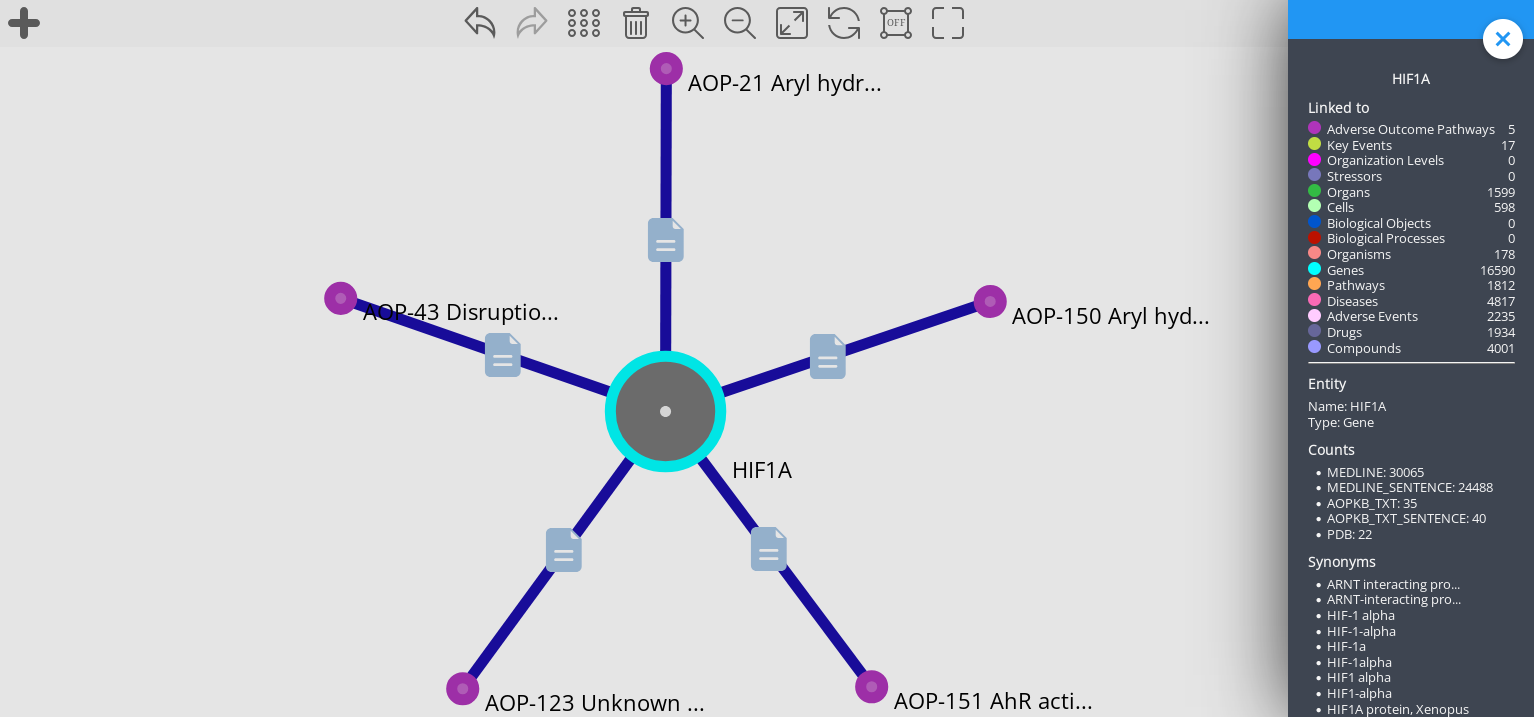
HIF1A is listed in 5 AOPs and in 17 KEs. In the graph above we also expanded to AOPs so they are displayed as nodes.
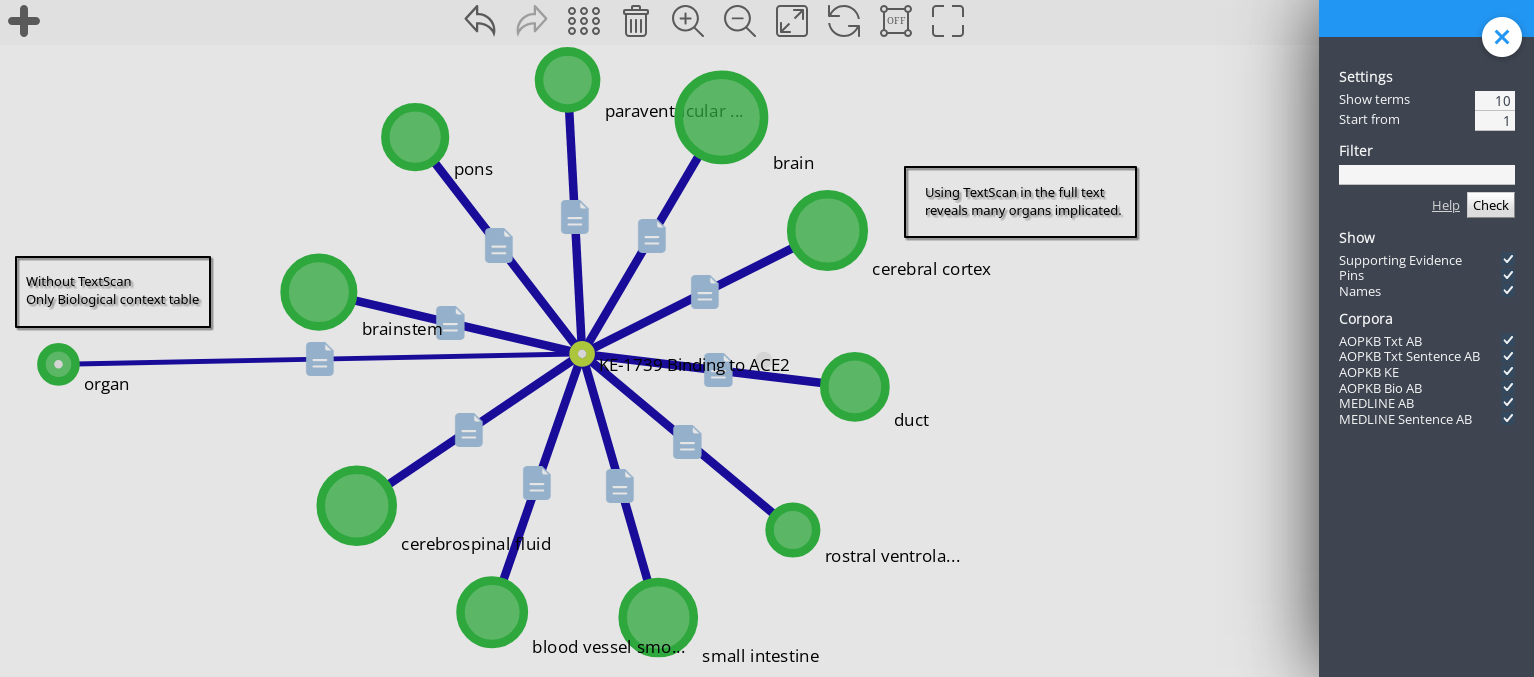
However the main benefit of TextScan is that it reveals all the hidden information that is mentioned in free text but for whatever reason never made it to the structured part of AOP-Wiki. A prime example of this is KE-1739 where several organs are missing [4] from the Biological Context table but due to TextScan are recovered as it demonstrated in the main post’s image at the top.
Experimental Methods
The Methods2AOP working group has been working towards the integration of Experimental Methods in the structured parts of the AOPKB. In order to obtain a controlled vocabulary for these terms, the OBI ontology was proposed, among others.
Note that Biovista also proposed OBI as a potential nominee for this role although we did stress out that significant coordination will be required between the projects to express the currently existing AOP methods listed in free text.
As an experiment (no pun intended), in order to review the coverage of Experimental Methods terms in the AOPKB corpus, in this Biovista Vizit release, we implemented 2 categories:
- Experiments (OBI)
- Laboratory Procedures (UMLS + custom common terms from Biovista)
Some interesting facts:
- The results are rather comprehensive in favor of UMLS. It brings 1123 concepts (3389 terms with synonyms) vs 25 (26 with synonyms) of OBI.
- UMLS may (at some point) incorporate OBI, as it usually does with other ontologies.
- One significant advantage of OBI is their dedicated Github page, which makes it more accessible for potential requests regarding concept or term additions.
Here is a Vizit graph with the Experimental Methods mentioned in KE-1739.

Background
Some background for the uninitiated…
Biovista Vizit has the ability to overlay multiple sources of information (corpora) in a consistent knowledge graph, probably the biggest browsable life-science knowledge graph there is. The same capability can be used in the inverse way, namely splitting a corpus in sub-corpora especially if they are hosting different kinds of relationships. For AOPKB we decided to split the full corpus in 4 sub-corpora.
- AOP_KE: Hosts the directional relationships between AOPs, KEs, STRs and Organisms (must be explicit in a AOP Wiki table):
- AOP-KE (boost based on KE position in AOP table)
- AOP-STR (boost based on STR position in the AOP-STR table and the value of Evidence)
- KE-STR (boost based on STR position in the KE-STR table and the value of Evidence). Note that with the update of AOP-Wiki to 2.8 and the downgrade of Stressors to Prototypical Stressors the relationships of a KE to STR were lost and as such no links are displayed in Biovista Vizit.
- AOP-Organism (boost based on Organism position in AOP-Taxonomic Applicability table and the value of Evidence)
- KE-Organism (boost based on Organism position in KE-Taxonomic Applicability table and the value of Evidence)
- KE-KE (based on KER tables)
- AOPKB_BIO: Hosts the non directional relations as they are found in Key Event Component tables and in the other structured parts (non free text) of the AOP corpus. The ordering is determined by the Jaccard Index of the co-occurrence and supporting evidence is the KE text itself. The concept types listed are:
- KE
- Biological Organization Level: BOL (in KE)
- Organ (in KE)
- Cell (in KE)
- Process (In KE component)
- Object (In KE component)
- AOPKB_TXT (NEW): Hosts all standard Biovista Types such as Genes, Pathways, Drugs, Compounds etc. It is based on co-occurrence and Jaccard Index but it scans the full text and not only the structured parts.
- AOPKB_TXT_SENTENCE (NEW): The same as above but considers only relations of entities that co-occur in the same sentence.
References
Relevant scientific papers using AOPKB-related features of Biovista Vizit
- Nymark P. et al. (2024). Building an Adverse Outcome Pathway network for COVID-19. Systems and Synthetic Immunology. Volume 4 DOI: 10.3389/fsysb.2024.1384481
- Wittwehr, C.et al. (2023). Why adverse outcome pathways need to be FAIR. ALTEX – Alternatives to animal experimentation. DOI: 10.14573/altex.2307131.
- Wittwehr, C. et al. (2023). Methods2AOP: An International Collaboration to Integrate Assay Annotations into the AOP Key Event Descriptions. Society of Toxicology 62nd Annual Meeting and ToxExpo 2023, Nashville, TN, March 19 – 23, 2023. DOI: 10.23645/epacomptox.23564160
Biovista Suggestions on SAAOP
- Biovista Presentation: https://docs.google.com/presentation/d/1695ZYwzDCOGQSHSs0ffeaDJPpd3GlmQ7jArbZAMRq-Y
- AOP-Wiki Forum Suggestions: https://forum.aopwiki.org/showthread.php?tid=212